Reliable backup monitoring

Know your Mac backup is safe.

OpenBackup monitors SuperDuper! backups on macOS and shows their status on your Android phone—without turning your backup data into somebody else’s product.
Google Drive included HTTPS only No subscription
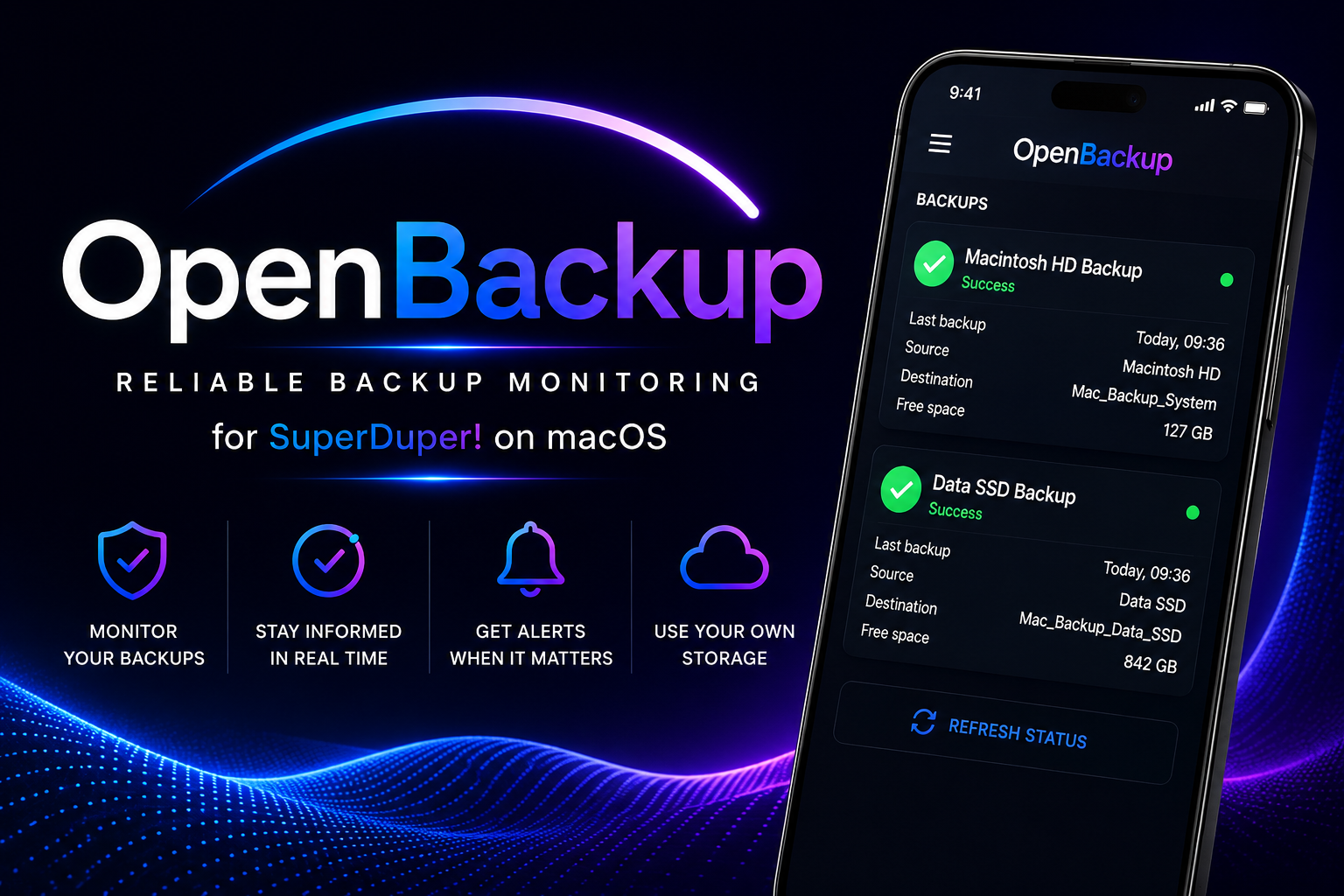
OpenBackup dashboard showing successful SuperDuper! backups from a Mac
OpenBackup connects SuperDuper! on a Mac with the Android app

OpenBackup for Android

Your Mac backup status, always within reach.

The OpenBackup Android app shows whether your SuperDuper! backups completed, when they last ran, what was copied and how much free space remains—clearly presented in one secure mobile dashboard.

Android iOS Google Play Apple Store Free No subscription

Works together with your Mac: OpenBackup Setup for macOS installs the required SuperDuper! monitor and creates the status file that the Android app securely reads.

Main app OpenBackup for iPhone Available now Apple App Store

Install on your iPhone

Download OpenBackup from the App Store and connect it to the same cloud source as your Mac.

  1. Open the App Store on your iPhone.
  2. Search for OpenBackup.
  3. Tap Get and wait for the download to complete.
  4. Open OpenBackup and follow the on-screen introduction.
  5. Choose the same cloud connection that you configured with OpenBackup Setup on your Mac.
  6. Test the connection and open the dashboard to view your SuperDuper! backup status.
Main app OpenBackup for Android Google Play

Install on your Android phone

Open the Google Play listing, install OpenBackup, and connect it to the same cloud source as your Mac.

  1. Open the Google Play Store on your Android phone.
  2. Search for OpenBackup.
  3. Tap Install and wait for the download to complete.
  4. Open OpenBackup and follow the on-screen introduction.
  5. Choose the same cloud connection that you configured with OpenBackup Setup on your Mac.
  6. Test the connection and open the dashboard to view your SuperDuper! backup status.
Required Mac setup OpenBackup Setup for macOS Connects SuperDuper! to the Android app Download OpenBackup Setup 2.1

Install on your Mac

The configuration wizard does not open automatically after installation.

  1. Download OpenBackup-Setup-2.1.pkg.
  2. Open the package and complete the installation. An administrator password or Touch ID is normal and is required to install the software in the Apps folder.
  3. When the installation is complete, click Close. The configuration wizard does not open automatically.
  4. Open Finder by clicking the blue-and-white face in the Dock. Then click Apps in the sidebar and double-click OpenBackup Setup. or Click the blue-and-white Finder icon in the Dock. Then press Shift + + A to open the folder containing your installed apps. Double-click OpenBackup Setup.
  5. The OpenBackup Setup configuration wizard opens.
  6. Follow the six steps in the configuration wizard to connect OpenBackup to your SuperDuper! backups and preferred cloud folder.
  7. Complete the configuration and follow the instructions on the final screen for the OpenBackup Android app.

One clear overview

Your backups, without the guesswork.

Check completion time, source, destination and available space from one streamlined Android dashboard.

Clear status

See immediately whether every configured backup completed successfully.

Multiple jobs

Monitor system, data and external-drive backup jobs from one place.

Your storage

Connect through Google Drive, Dropbox or your own HTTPS server.

Smart alerts

Receive notifications when a backup fails or needs attention.

Installation guides

Set up each part in the right order.

Start with SuperDuper! on the Mac, connect your storage, and finish the setup in the Android app.

1 Prepare SuperDuper!
  1. Create each backup job in SuperDuper! and choose the correct source and destination.
  2. Run every job once manually and verify that it finishes successfully.
  3. Give each job a clear, unique name so it is easy to recognize in OpenBackup.
2 Configure the OpenBackup monitor on macOS
  1. Place the supplied OpenBackup monitor script in your OpenBackup folder on the Mac.
  2. Configure SuperDuper! to run the script after the backup completes.
  3. Confirm that the script creates or updates backup_status.json.
3 Connect Google Drive
  1. Sign in to Google Drive on the Mac and choose the Drive location used by OpenBackup.
  2. Make sure backup_status.json is synchronized successfully.
  3. Use the same Google account in the OpenBackup Android app.
4 Install and connect the Android app
  1. When released, install OpenBackup from Google Play.
  2. Open Settings and select Google Drive, Dropbox or Custom Server (HTTPS).
  3. Grant the requested access and tap Test connection.
  4. Return to the dashboard and refresh the backup status.

Explore OpenBackup

A focused interface for something important.

Every screen is designed to make backup status understandable at a glance.

Free or Pro

Start free. Upgrade once.

The essential Google Drive monitoring experience is free. Pro adds more connections, notifications and control—without a subscription.

OpenBackup Free

  • Google Drive connection
  • Backup status dashboard
  • Free updates
  • Standard refresh interval

Ready to monitor smarter?

Keep your backup status within reach.

OpenBackup Setup for macOS is available now. The OpenBackup Android app is being prepared for its official release.

View availability